
Video Tutorial
Reset rotation
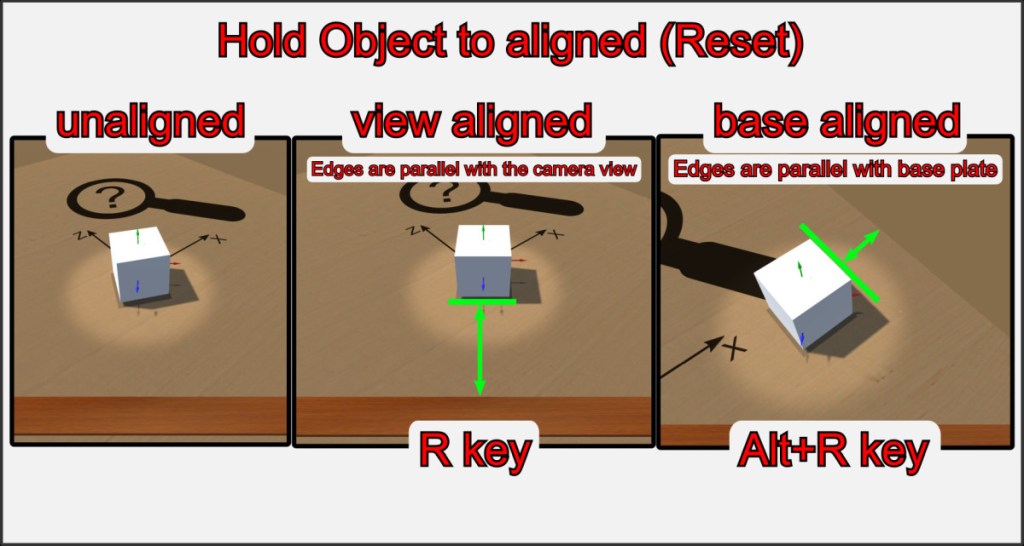
The rotation of objects can be reset to the basic position or the player view at any time. Press R while holding an object in your hand to straighten it and adjust its rotation around the Y axis to that of your view. The object now looks in your direction.
Use the combination Alt+R to delete all rotation values of an object (0,0,0) so that it returns to its original position in relation to the base plate.
Align by keys
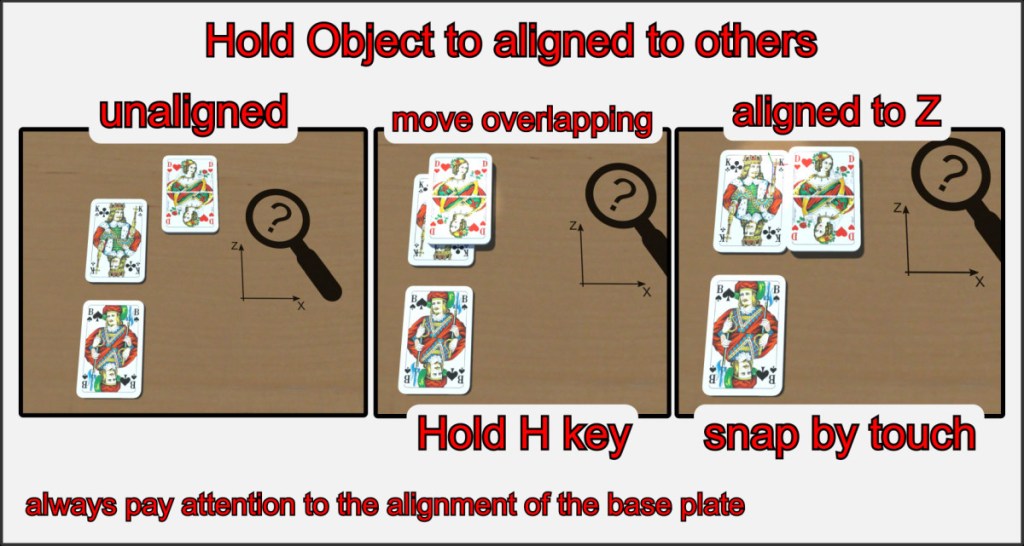
You can align the position of an object with that of other objects in the room. One option is to use the H and G keys.
Pick up an object and hold down the H OR G button while moving the object over another object. If there is a suitable object below the one in your hand, the object you are holding will align itself with the object below using the X axis (with H key) or the Z axis (with G key). This allows you to place objects neatly next to each other without wasting space.
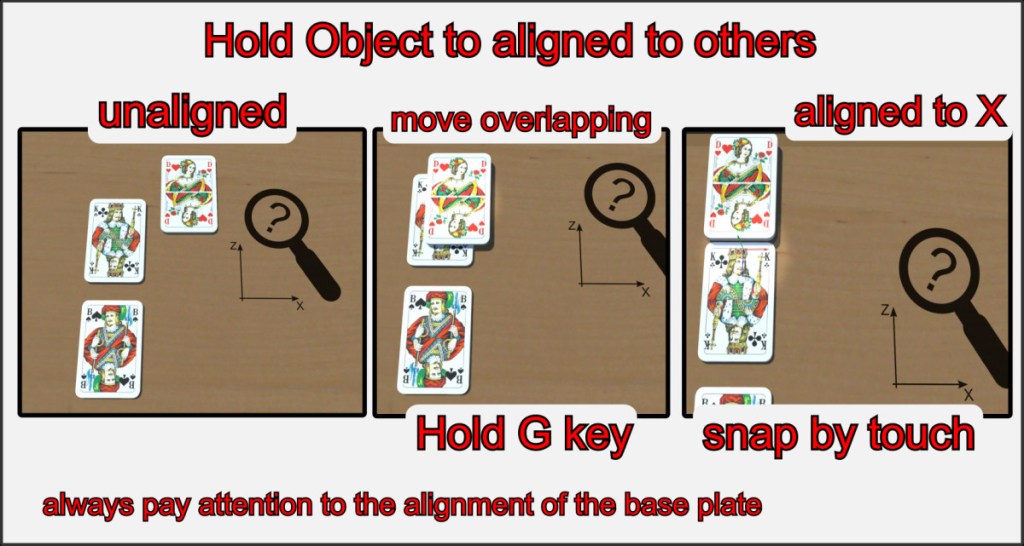
With this method, the axes are defined by the button pressed.
- Use H to align objects to the X axis of other objects
- Use G to do the same for the Z axis.
Align by other objects
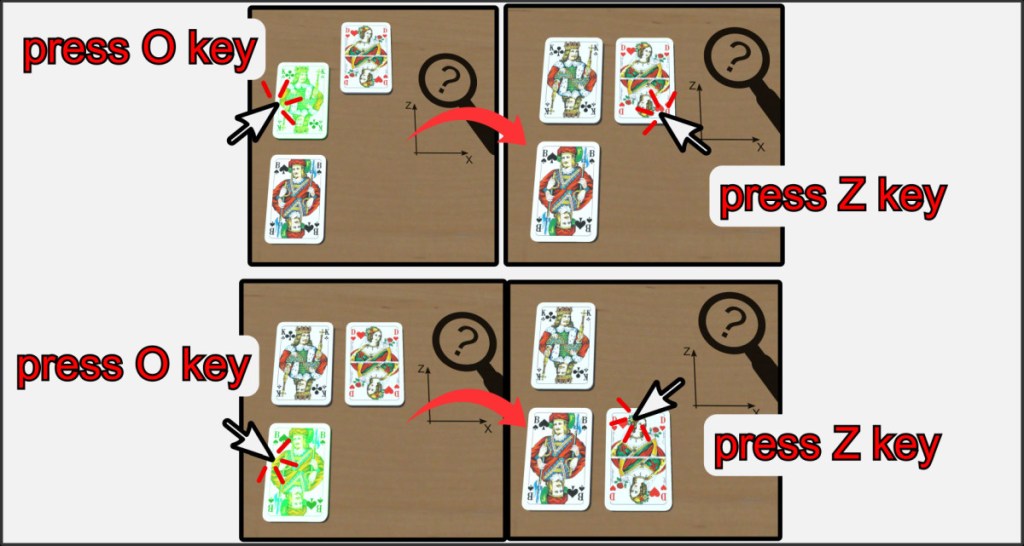
Another way of aligning objects is the marking method. Move the mouse pointer over an object to which another object is to be aligned. Press the O key and mark this object as a pivot object. It will have a green frame.
Then move the mouse pointer over the object to be aligned and press the X or Z key to select the axis on which the alignment is to take place. All other positions of the object are not changed.
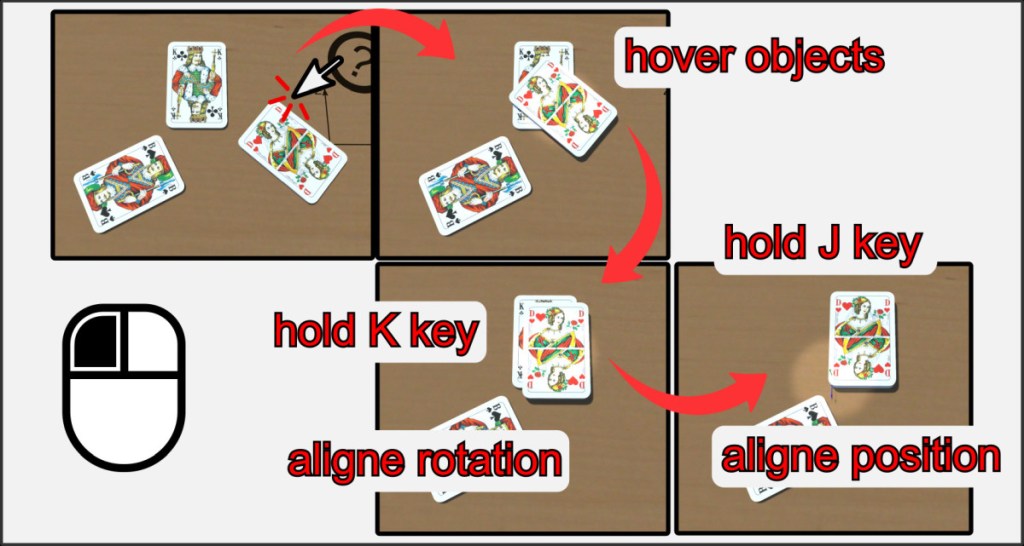
An important and practical function is the stacking of similar objects. You can give objects in your hand the same position and rotation as an object underneath it.
Press the K button to adjust the rotation of an object to that of the object below it.
Press the J button to bring the held object exactly to the position of the other object (X and Z axis).
This allows objects to be made congruent. Hold down J and move the mouse up and down to adjust the position of the Y axis during alignment.
Multi-Object Alignment
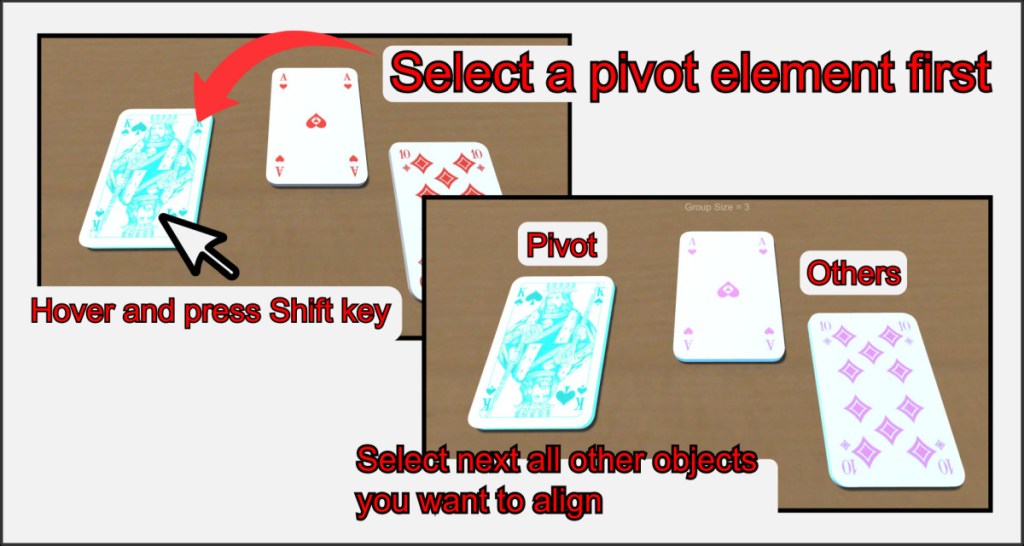
There is an alternative to aligning many objects in a group or to form certain group shapes. First, use Shift to select an object that the other objects should align themselves to. The pivot object. Then use Shift to select all other objects that should belong to the group.
River
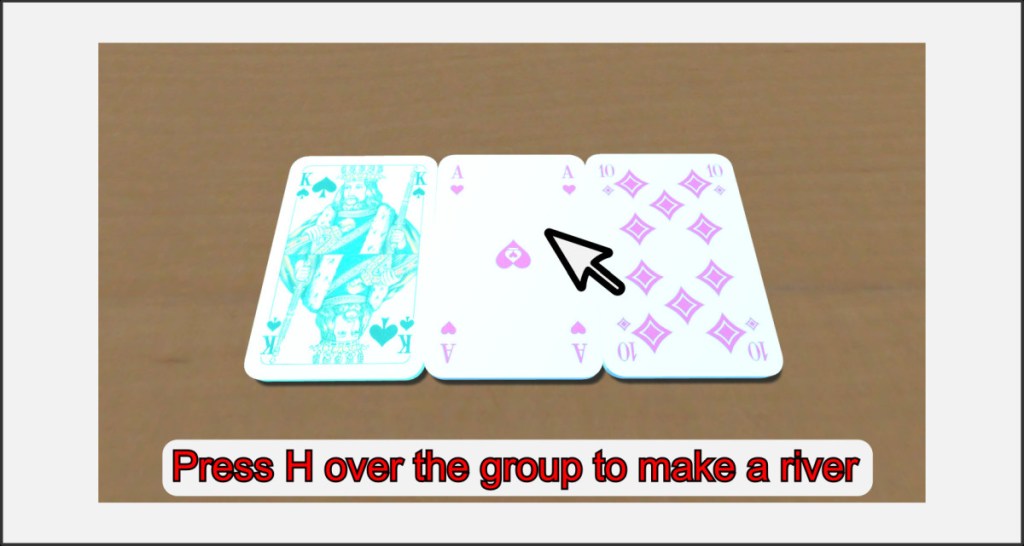
Hover over the group and press H to create a row from the group with the pivot object as the first object. Press K to also align the rotation of the objects to the pivot element.
Stack
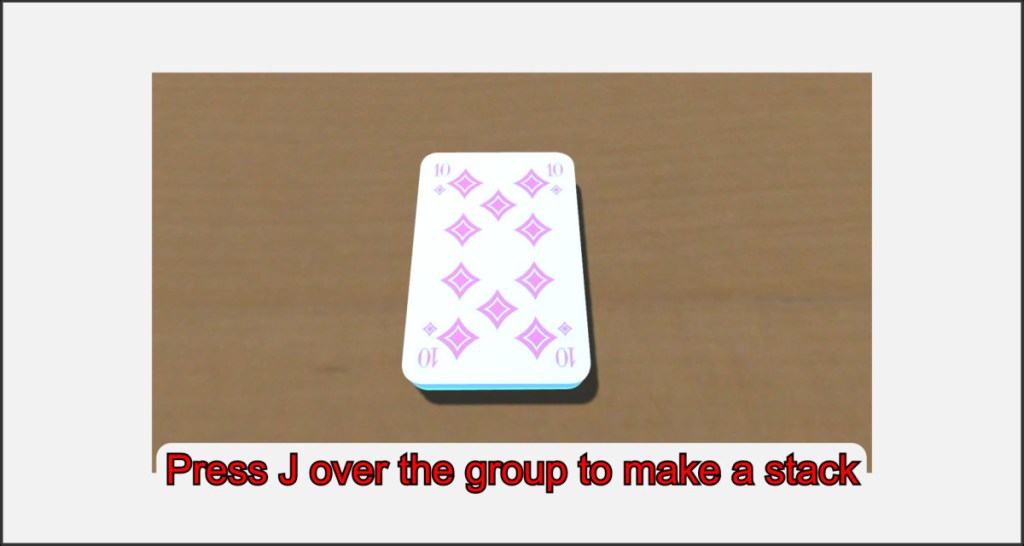
In the same way, use the J key to combine the group into a stack. You can switch between row and stack while the group is still selected. Click on an unrelated object, or move the group, to unselect it.

