
Main View
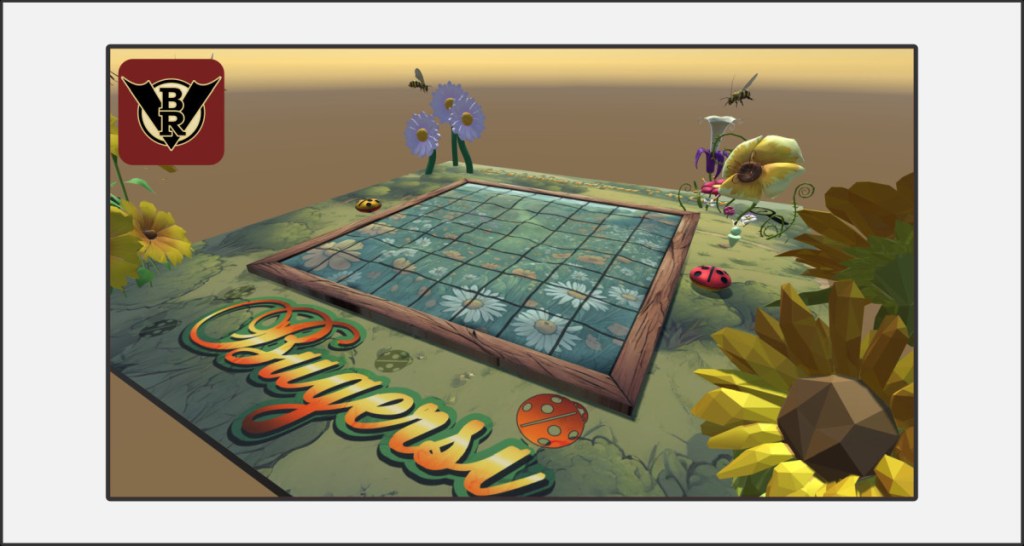
The main view in VBR is a first person view of the 3D environment, through which you can move completely freely. There are several options available to you. The controls may vary when some options are activated.
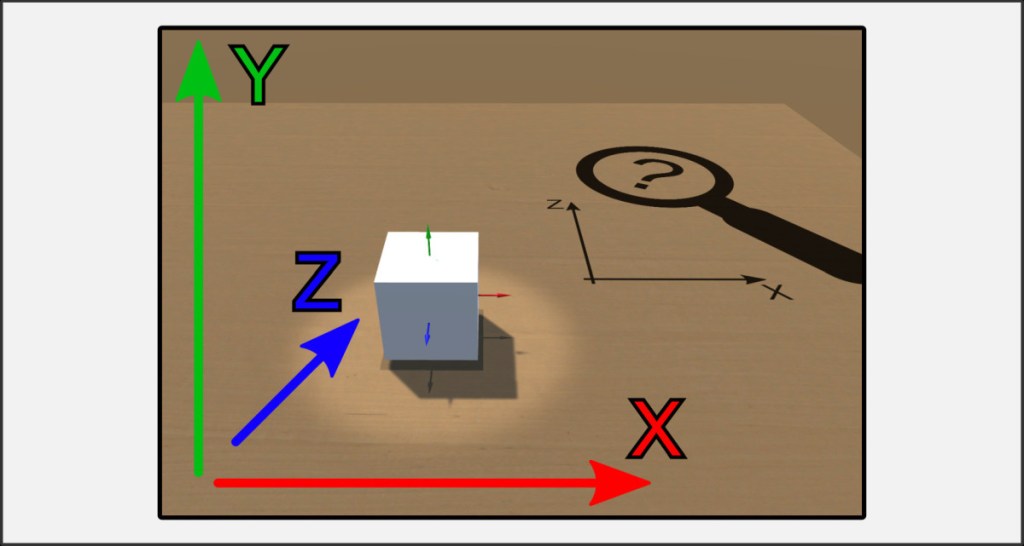
Always note the coordinates as shown in the picture.
- X = width
- Y = height
- Z = depth
The X and Z axes form the basic plane of the playing surface.
Moving the Main View
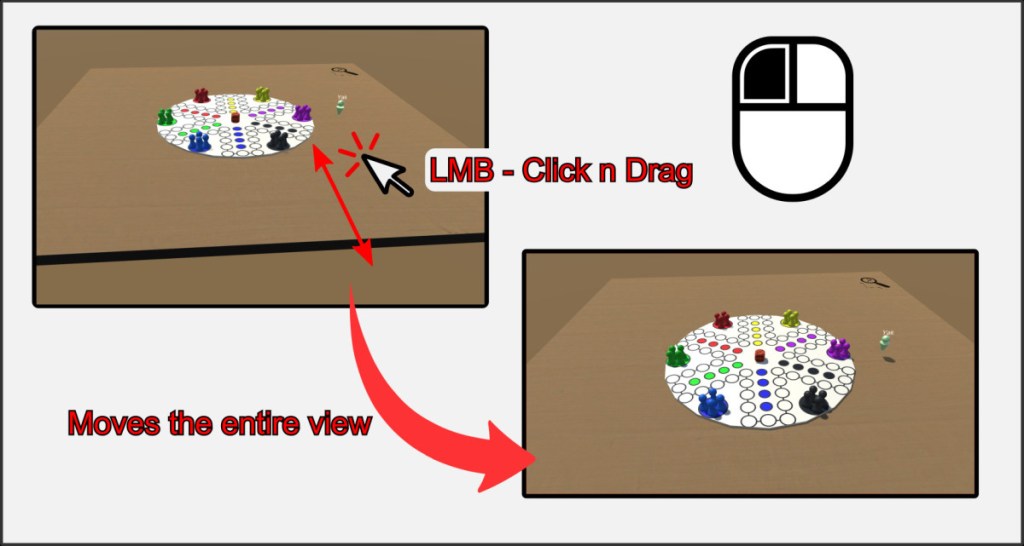
You can ‚move‘ very quickly by moving the entire scene around you. To do this, press and hold the left mouse button on an empty area of the playing field or a locked game object and drag or move the view in the corresponding direction by moving the mouse. These controls are very intuitive.
WASD Control
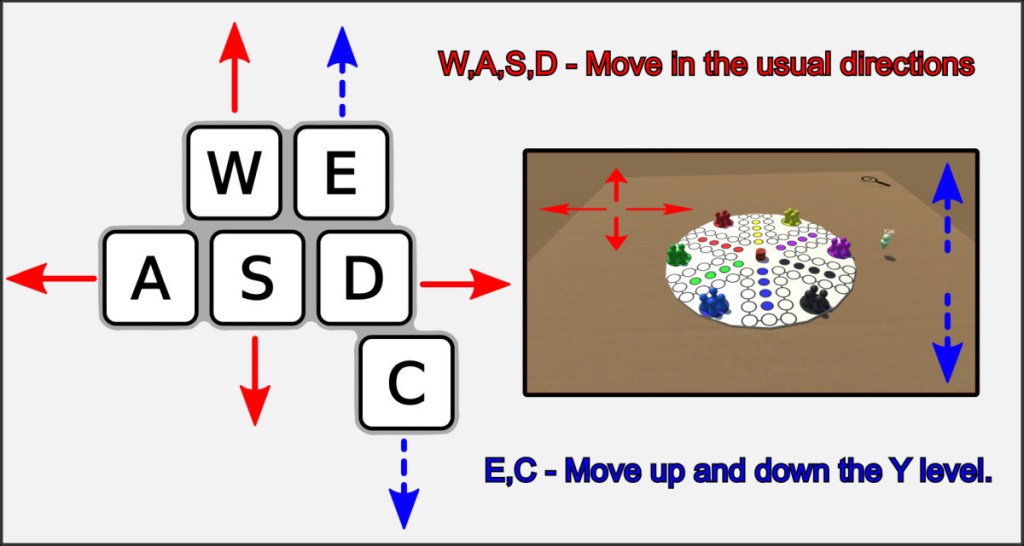
Alternatively, or to fine-tune the view, you can use the familiar W,A,S,D – E,C key combination. This allows you to move forwards, backwards, right and left on a X-Z plane.
With E and C you can move up and down on the Y axis. When using the keys, hold down the ALT key to move faster. Press ALT+NUMPlus or ALT+NUMMinus to change the global movement speed.
Rotating – Look around
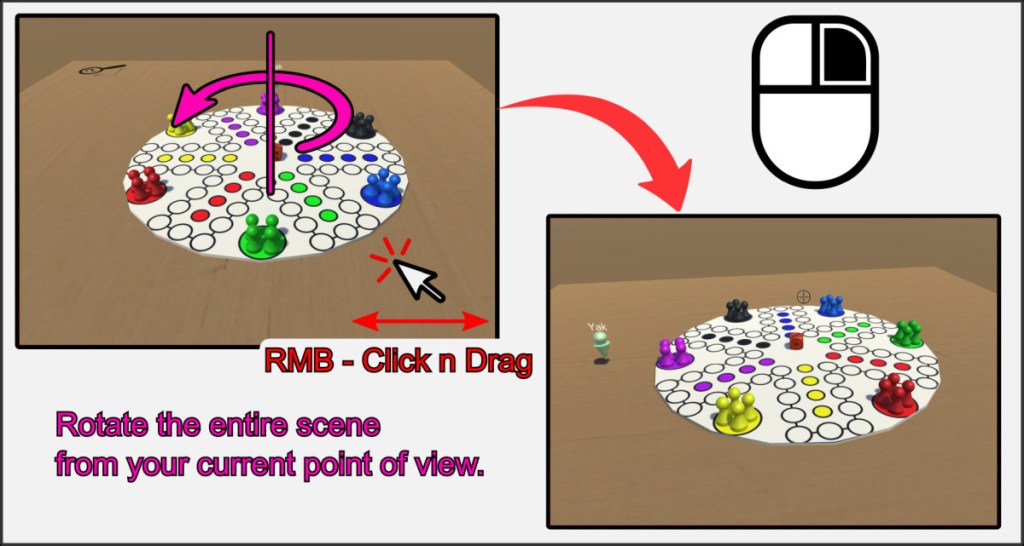
Change your point of view by rotating the world around you. To do this, press and hold the right mouse button and move the mouse left and right to rotate clockwise or anti-clockwise.
Note that while you are turning, you cannot move with E and C keys on the Y axis.
Zoom
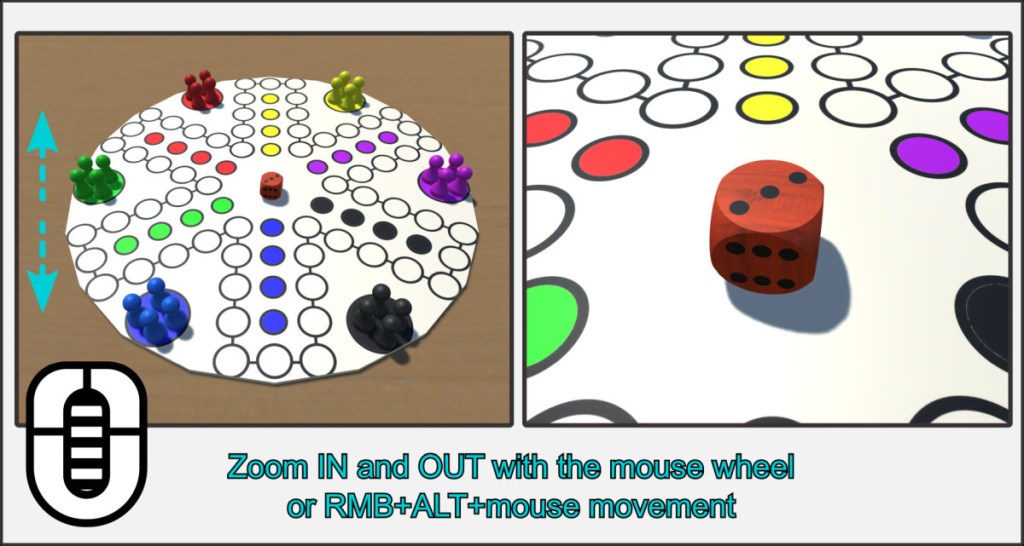
Align the mouse pointer with an object or the base plate and use the mouse wheel to zoom. The view will align itself with the object or the point on which the mouse pointer is resting. If you are in rotation mode with the right mouse button held down, press ALT at the same time to perform a smooth zoom camera movement with the mouse.
Hot Keys
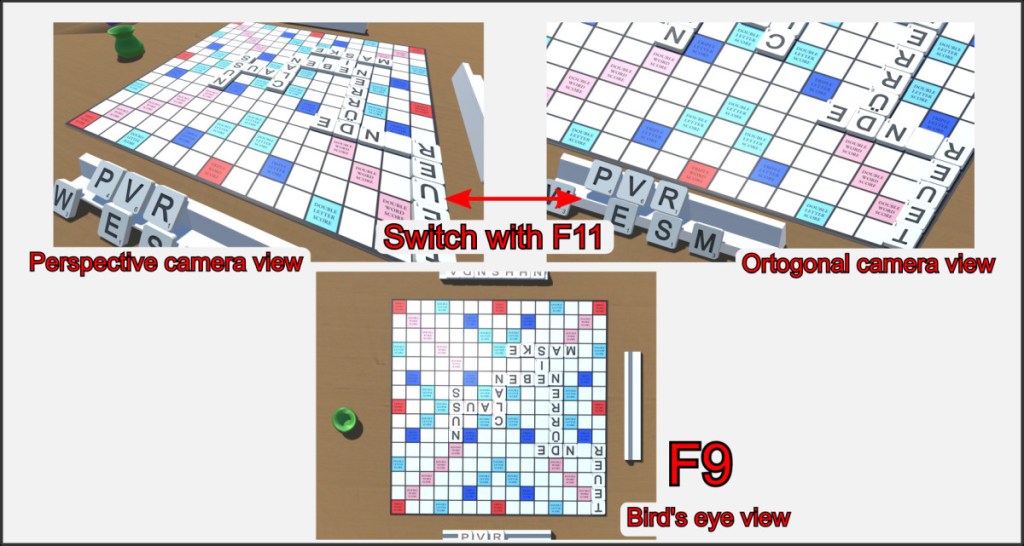
With F9 you can switch the camera to the top view at any time. This is particularly useful in combination with the orthogonal camera lens, which you can switch on and off using F11.

