
Turorial Video
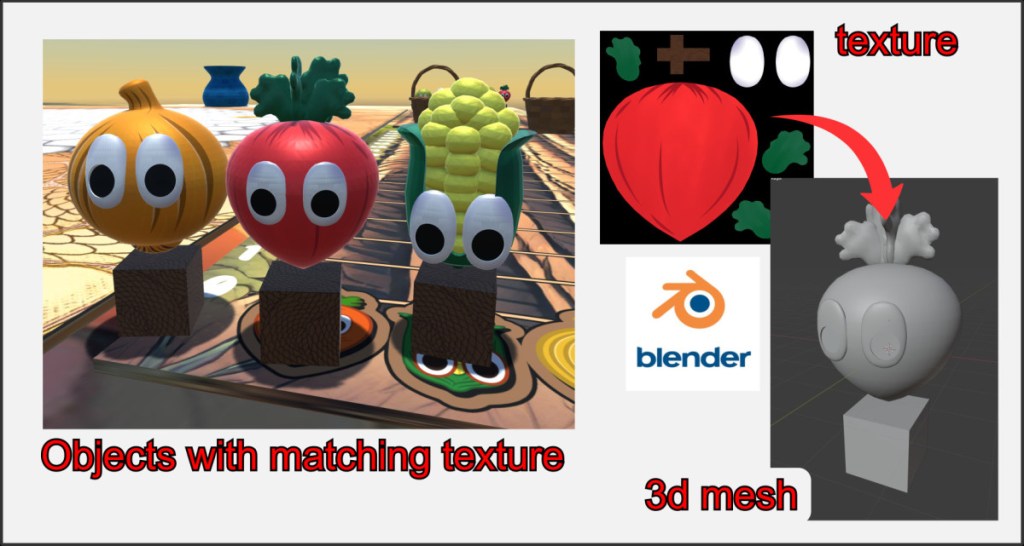
Imported, custom 3D bodies can be assigned a suitable texture. This requires a UV map that is created when modeling the 3D object and saved in the OBJ file using an external program such as Blender. If an object does not have such a UV map, no texture or only an incorrect texture is displayed.
Unwrapping Mesh
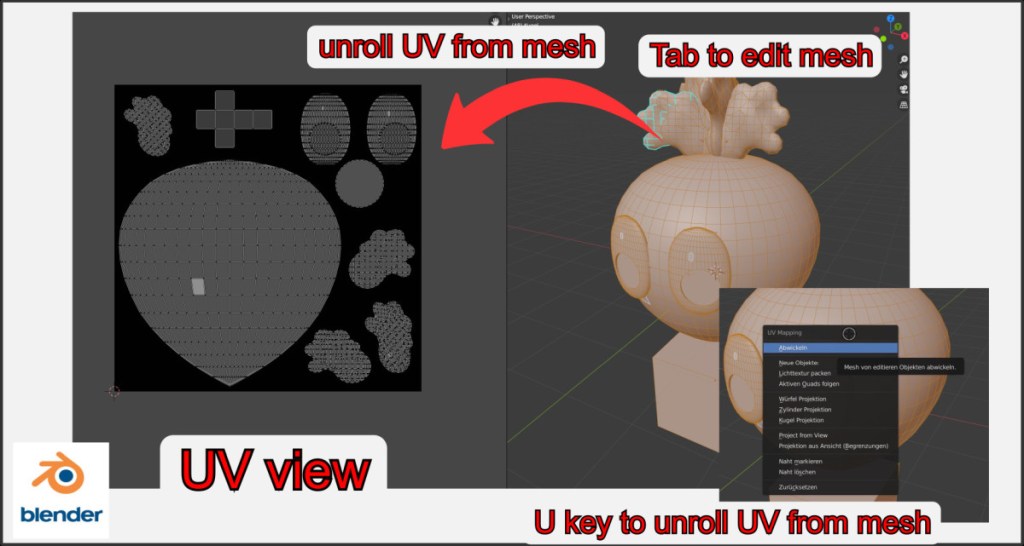
To generate a UV map from an existing or self-created 3D mesh, the mesh must be unrolled. Blender offers a whole range of options for this.
Switch to the editor view and press the U key to display the unroll menu. If you have no experience with Blender, take a look at some general tutorial videos on the subject of UV maps.
Unwrapping Blender Dokumentation
Unwrapp near everything in Blender (Video)
Texture Painting
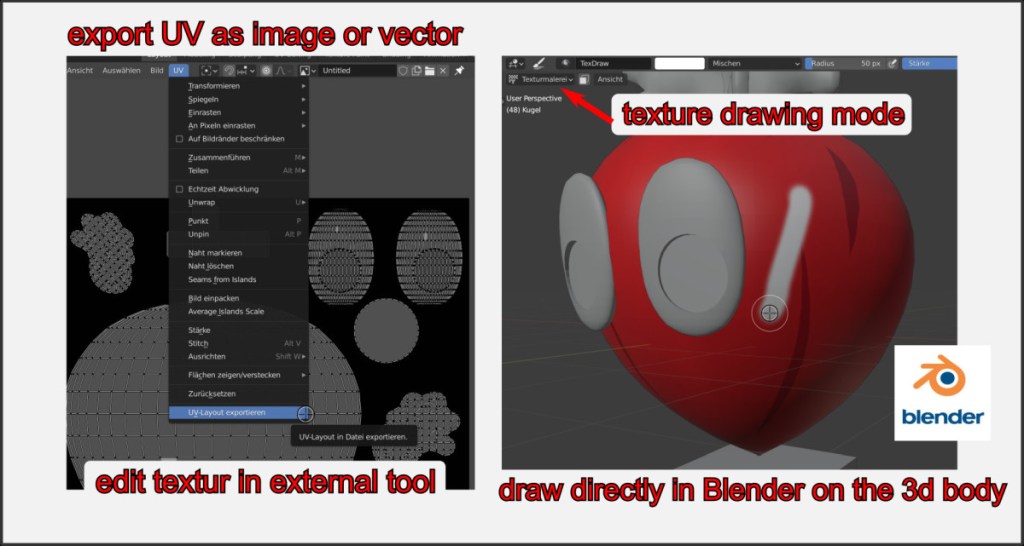
You can export your unrolled UV map as an image and create a texture in an external drawing and image processing program. In Blender it is also possible to paint directly onto the 3D surface in drawing mode.
Texture Paint in Blender Dokumentation
Unwrapping and Painting for Beginners (Video)
Import Textures back
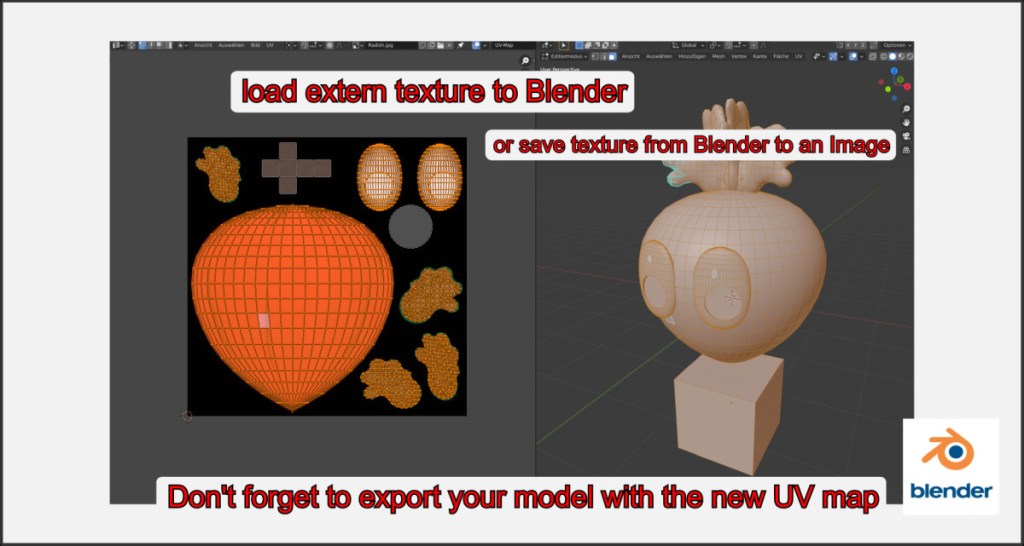
Once you have created your texture, you can import it back into Blender for testing or you can export your drawn texture from Blender to an image file.
Don’t forget to export your modified model as an *.obj file, as the UV information is saved in the model file.
Preview Texture
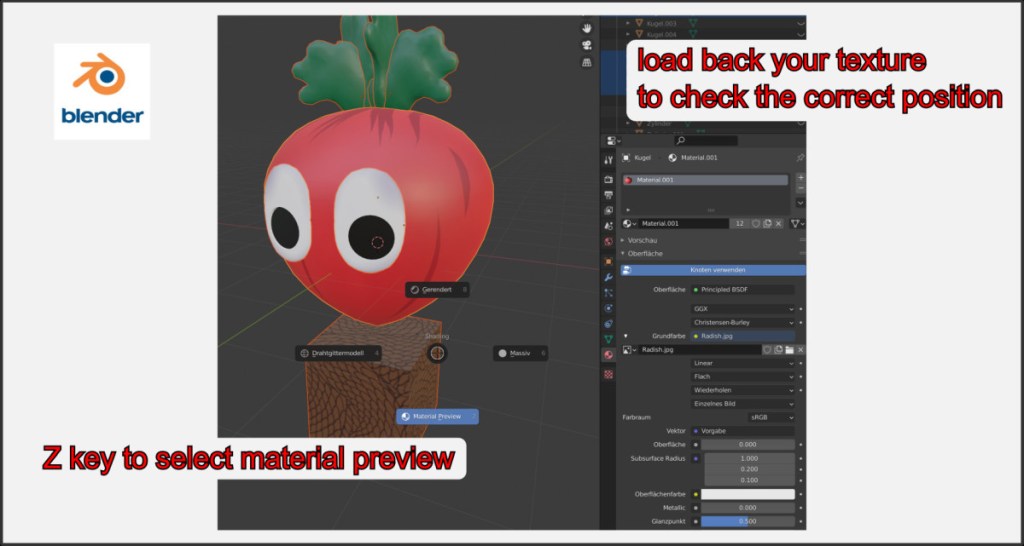
Blender offers the possibility to view the texture directly in the preview. To do this, set the base color of a material to Image file mode and select your texture image in the menu that appears. The Z button in object editor mode switches the views.
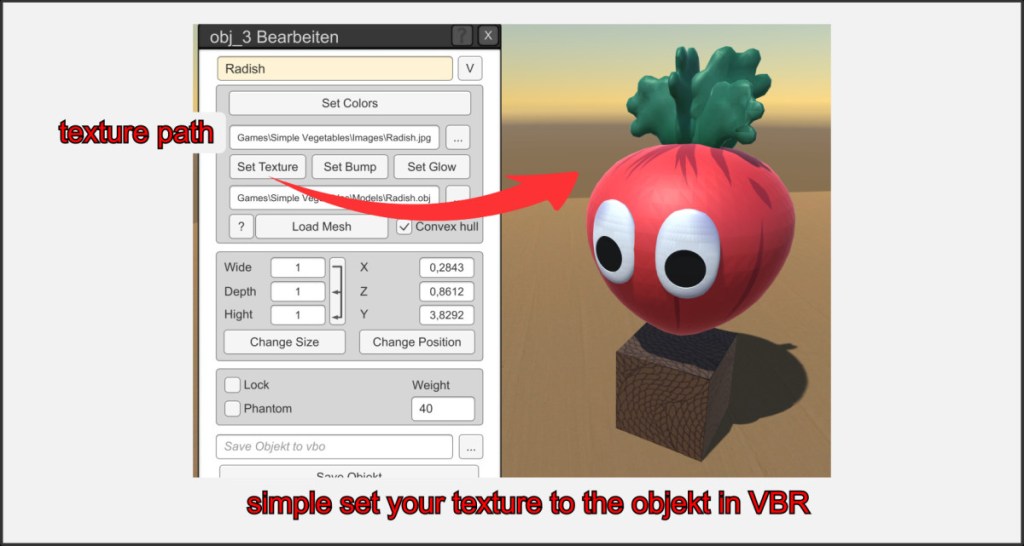
Once you have prepared the texture and 3D model in this way, all you have to do is load both into an object in the VBR.

