
Moving
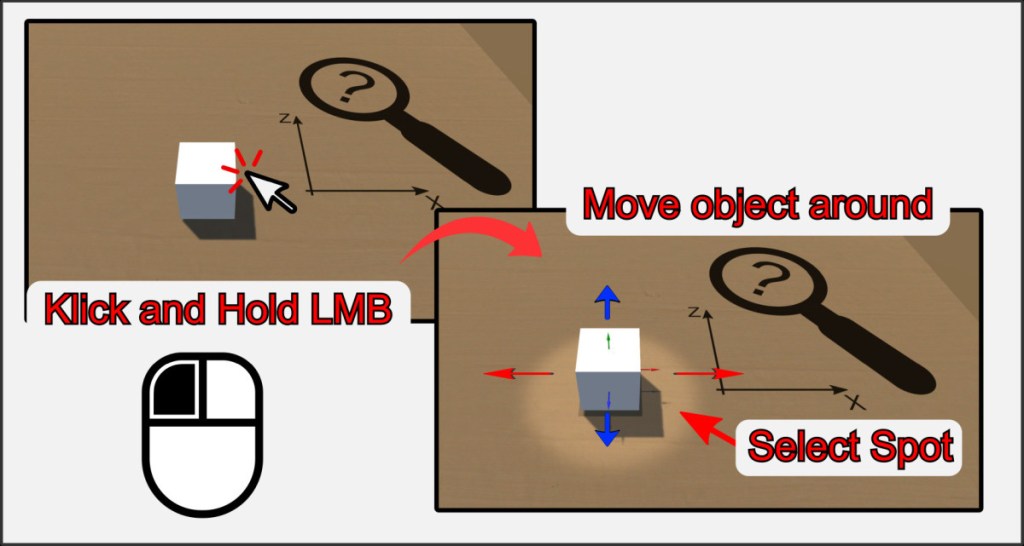
Move the mouse pointer over a game object. This is called Hover in the following. Then press the left mouse button to pick up the object. As long as you keep the button pressed, you can now move the object to any position on the base plate by moving the mouse. This is called Hold in the following.
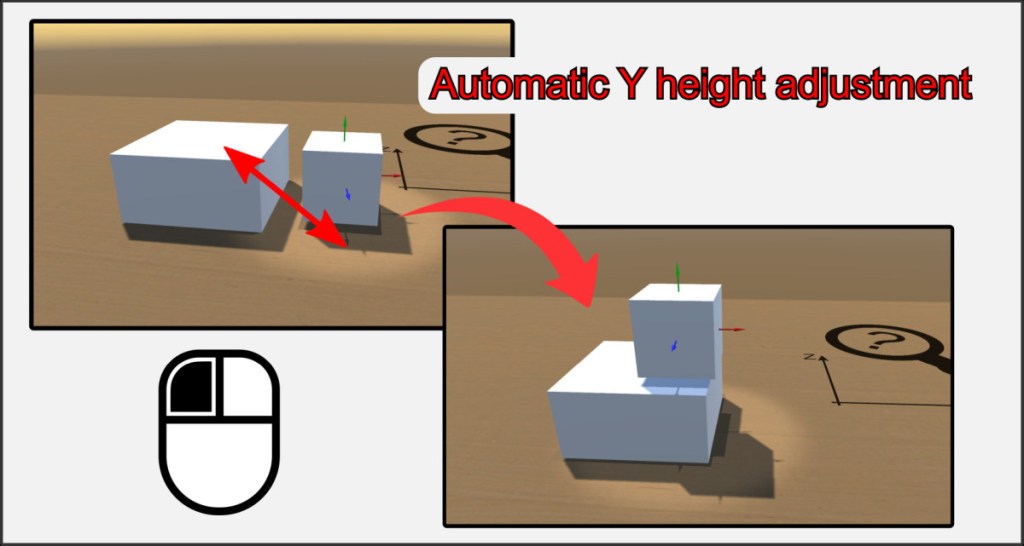
If you hold an object and move it over other objects, the height of the object’s Y axis is automatically adjusted so that the objects do not collide with each other. The pivot point is always the center of gravity of the object being held.
Rotating
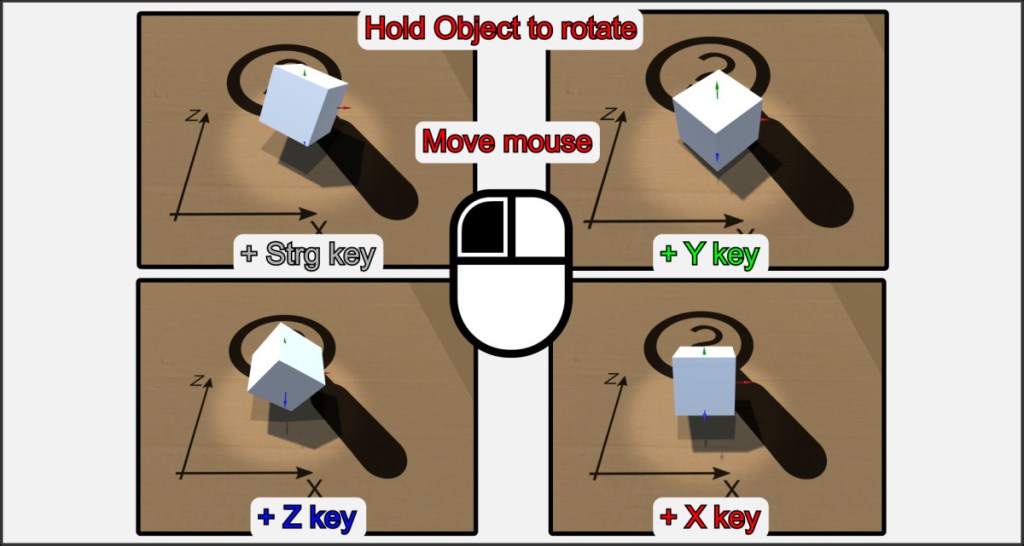
To rotate objects, you can pick them up and hold down one of the X, Y or Z buttons at the same time. You can also press the key first and then click on the object to rotate it around the respective axis instead of picking it up. With Ctrl you can rotate around the Y and X axis at the same time.
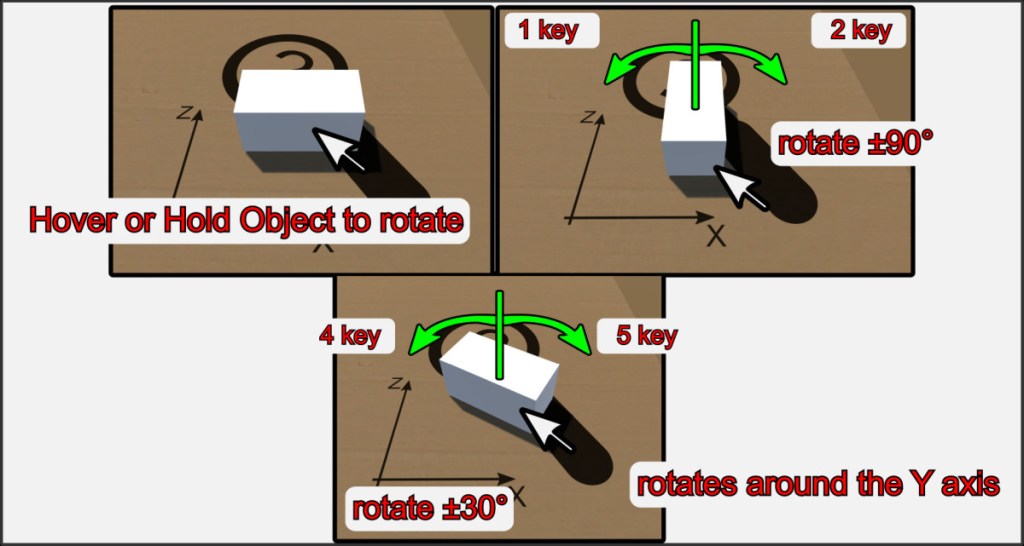
It is often useful to rotate an object by an exact, specific angle around the Y axis. This works when you hold the object, as well as when you move the mouse pointer over it. Then press buttons 1 and 2 to rotate it 90° clockwise or counterclockwise. To rotate an object by 30° in the same way, use keys 4 and 5. This is useful for hexagonal parts.
Flip
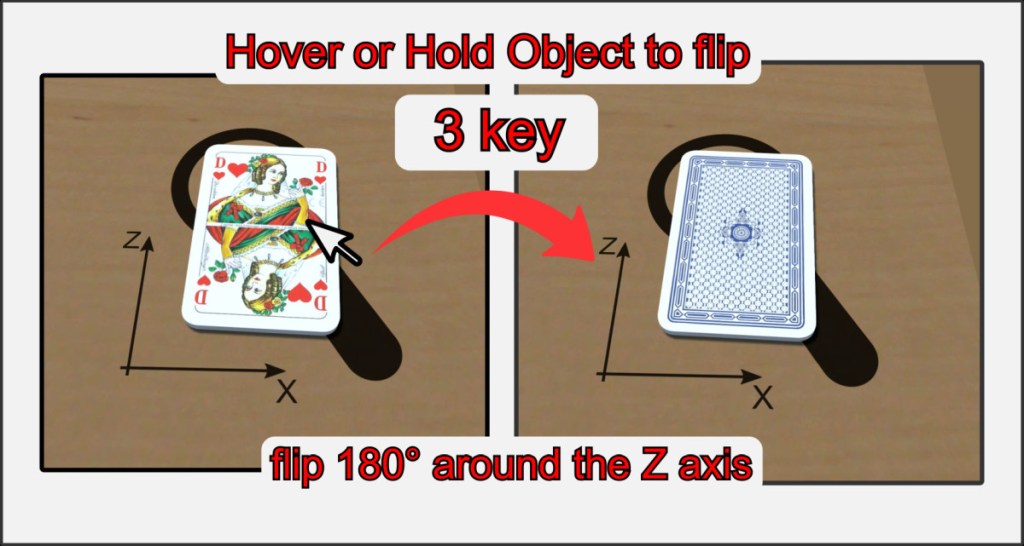
To turn objects such as playing cards or two-sided tokens 180° to their reverse side, press the 3 key while holding them or resting the mouse cursor over them.
Throwing (Roll)
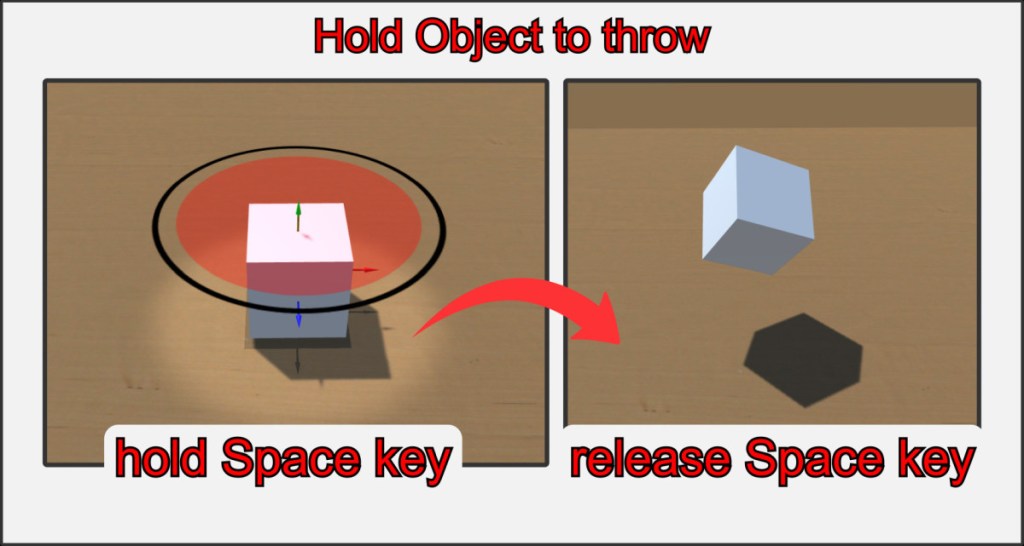
Almost all game objects can be thrown into the air according to their physical properties. The object always rises straight up on the Y axis and is assigned a random spin moment.
To do this, take the object in your hand and press and hold the space button. A force indicator will appear above the object, which will fill up the longer you hold the button down. The black ring serves as a rough guide.
Objects react differently to throws, depending on how heavy they are and what shape they have. Release the button to channel the force into the object and throw it up. You can cancel a throw with the RMB.

