
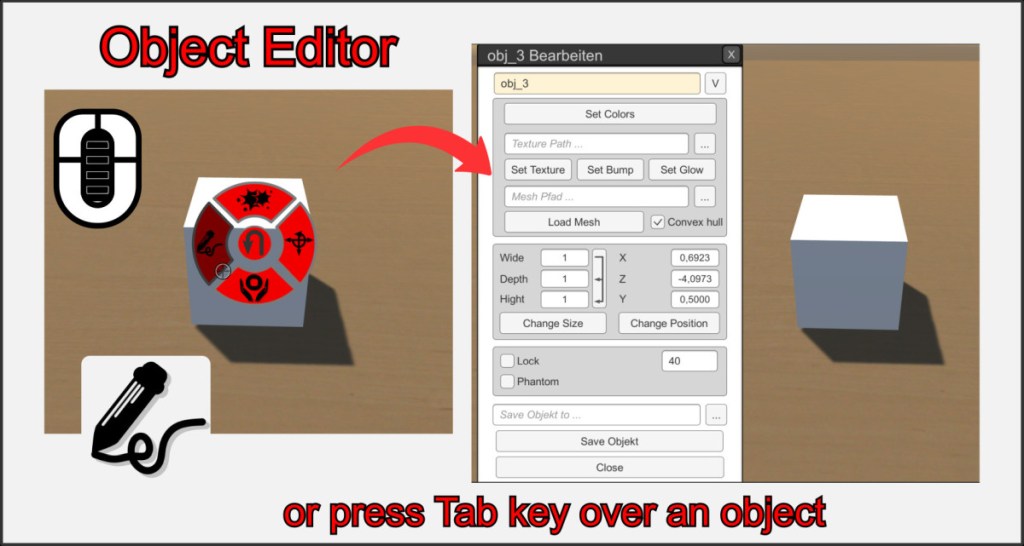
One of the most important elements for creating your own board games in VBR is the object editor. Each game object can be individually customized and edited.
Press the middle mouse button on an object you want to edit and select the left editor button in the ring menu. Alternatively, you can press the tab key while your mouse pointer is hovering over the object.
Object Name
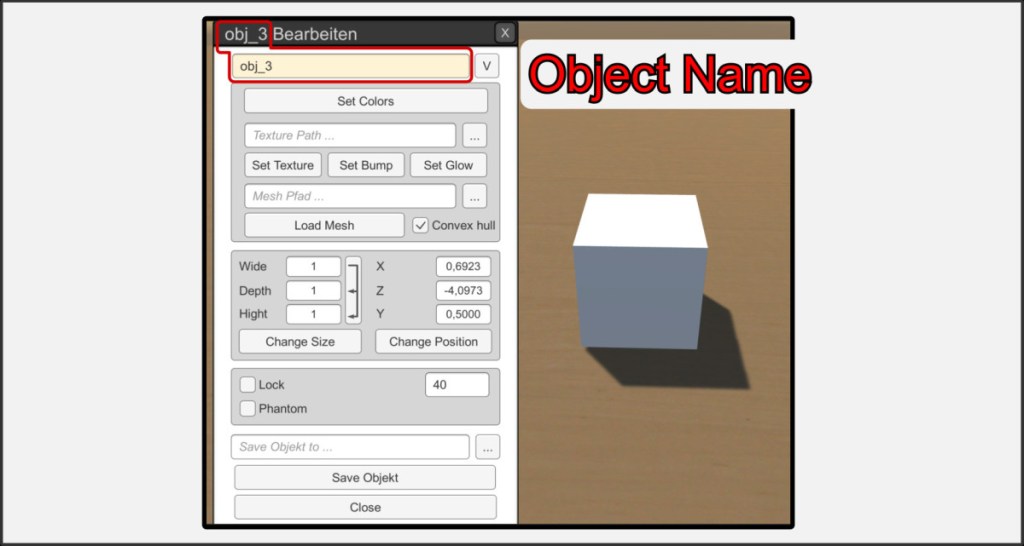
The editor window shows the current name of the object. You can change it in the name field. Note that some name additions have specific functions in VBR. No name may appear twice in a room, VBR may rename objects.
Renaming objects
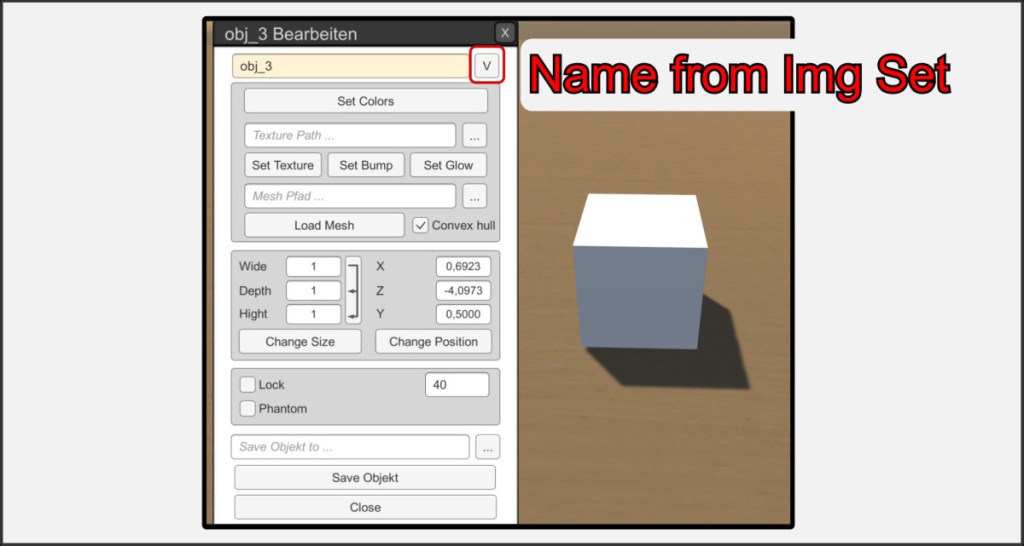
Use this button to take the name of the current texture applied to the object. This is useful for quick, clear renaming and good association of textures and objects.
Color Menu
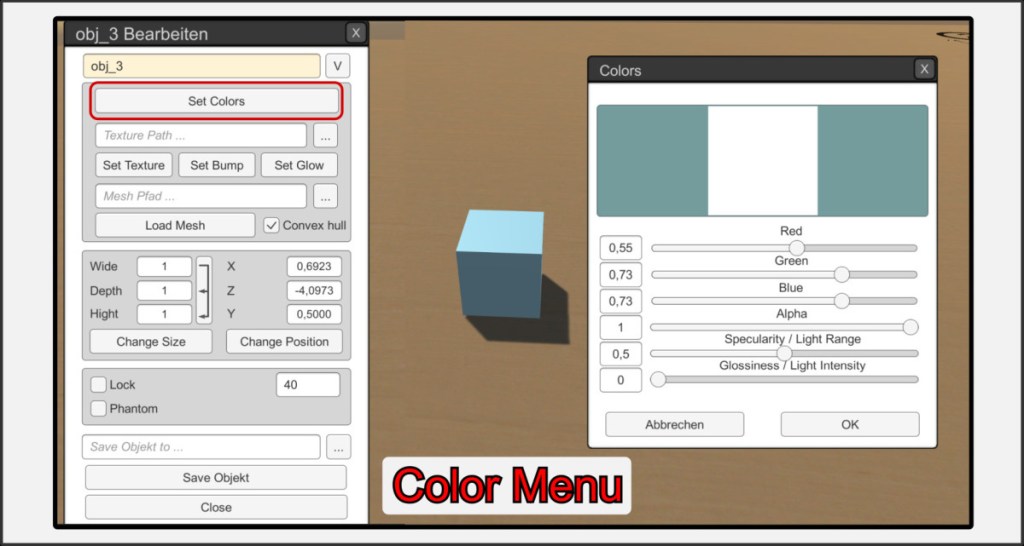
In this extra menu you can change the material properties of the object. Color, transparency, gloss and reflection. Objects look like wood, plastic or metal with the right settings. Experimenting is worthwhile. If the alpha level is set to less than 0, the object becomes completely invisible. This is useful for implementing certain mechanics in your board game. See further help under unseen auxiliary objects. Please note that the settings are only accepted when you press the OK button.
Textur Settings
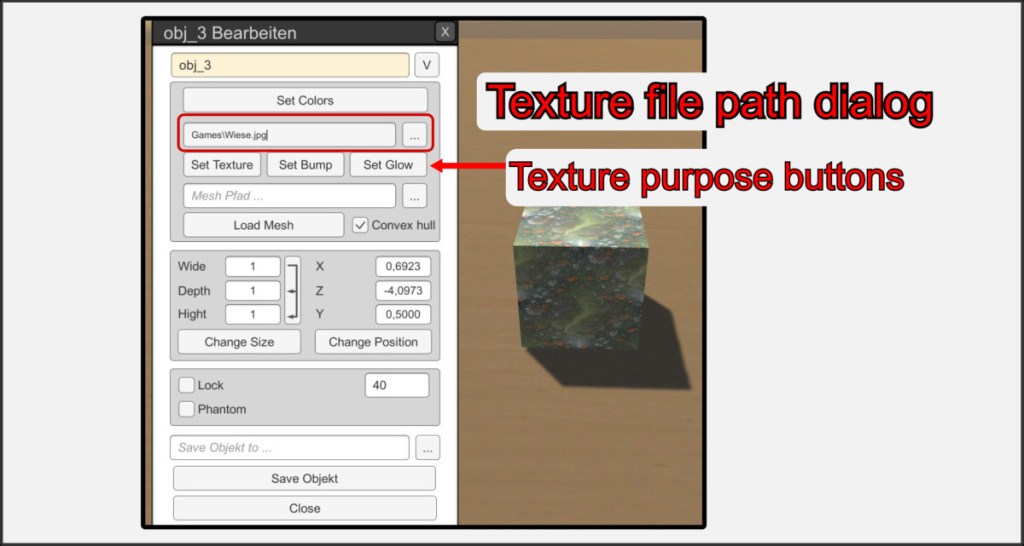
In this field you can select an image file to be placed on the object as a texture. *.jpg and *.png are supported. Select a file and press one of the settings buttons to use the texture as an image, bump map or glow. You can select different files for these three properties.
Clear the input field and press the buttons again to remove the texture. See the Object Specific Textures (UV-Mapping) help to place complex, two-sided textures on your objects.
Custom 3D Model
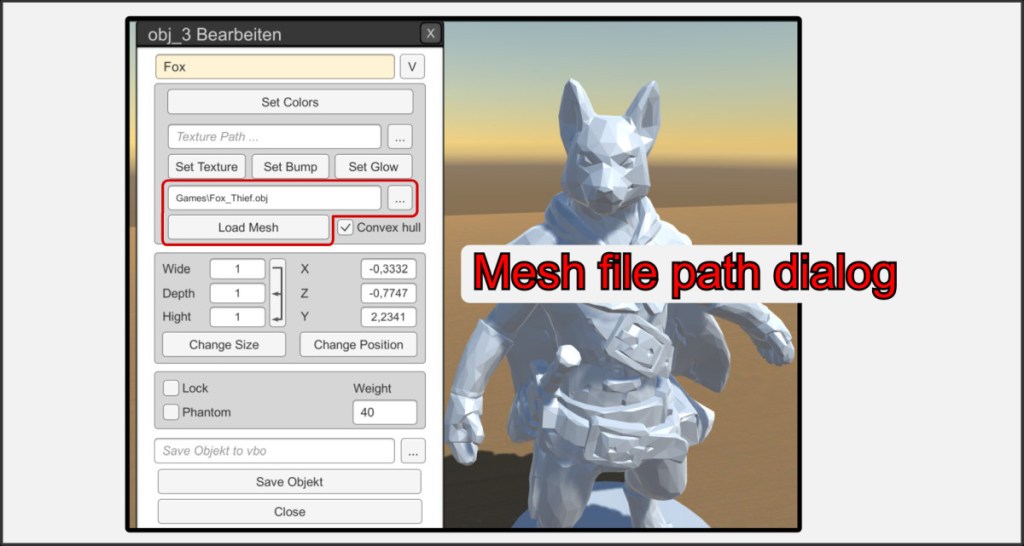
In this dialog menu, 3D *.obj files can be selected which are imported with Load Mesh and serve as the visible shell of the object. The object retains its basic and special properties.
The shape of a deck of cards or a spinner can also be freely changed. For detailed information on importing 3D objects, see the corresponding help entry.
World Size and Position
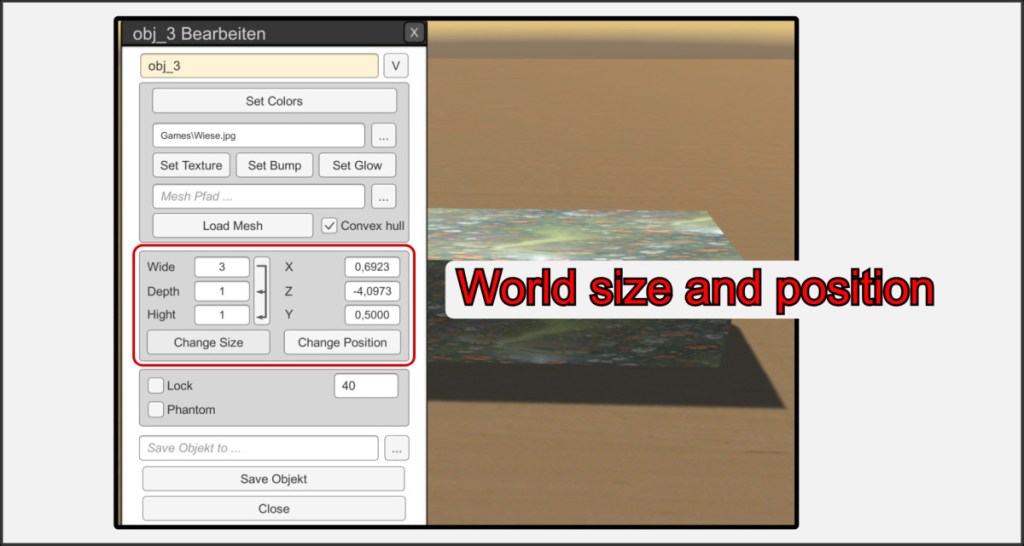
Width, depth and height as well as the position of an object in space can be specified and set here. When changing the Y-axis values, note that objects with physical properties always fall to the ground. If you move an object while the editing window is open, the position values are displayed in real time.
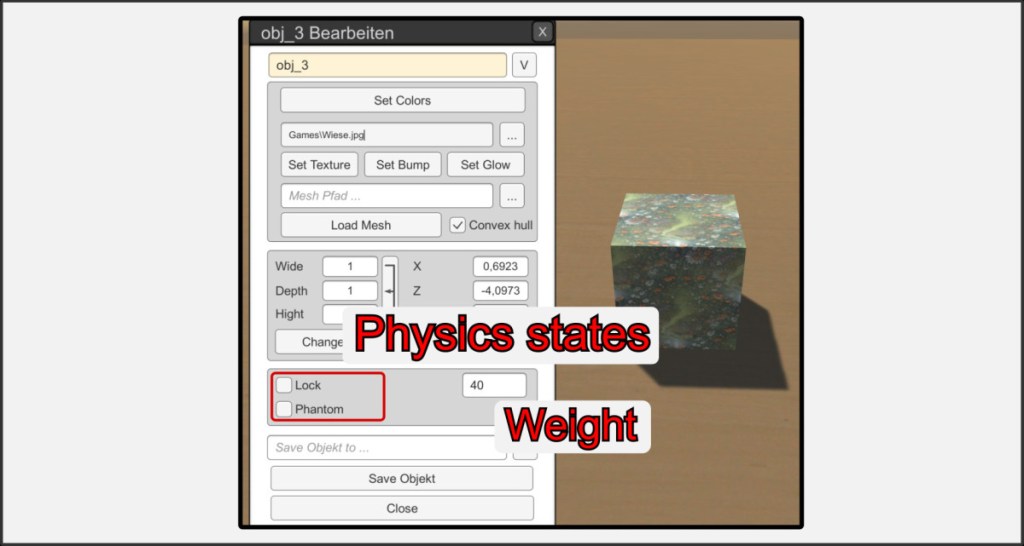
Lock and phantom states are displayed again in the editor and can also be set there.
The weight of an object influences its physical movement when thrown and when colliding with other objects. The heavier it is, the more energy must be used to move it. Sometimes it is a good idea to make stacked objects a little lighter to avoid the physics engine oscillating.
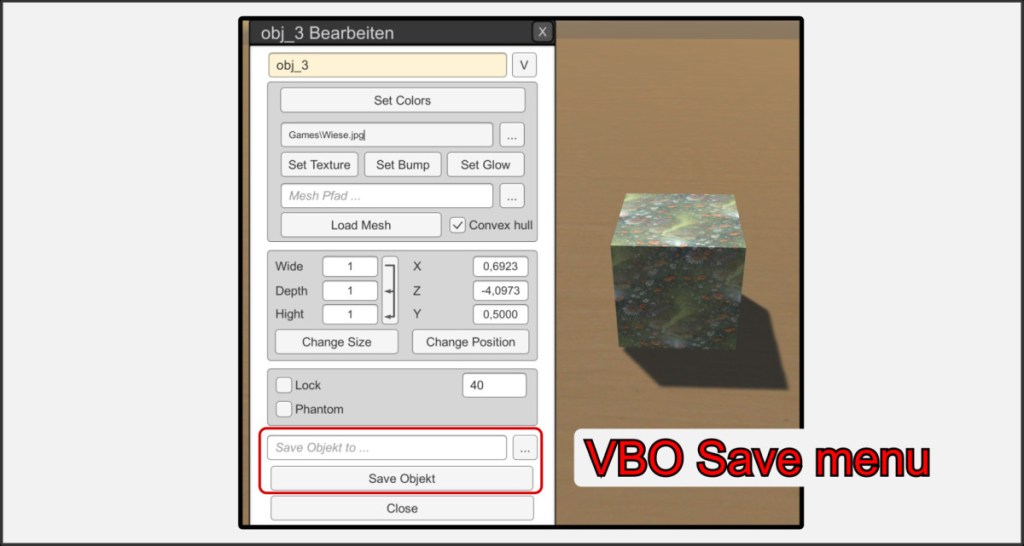
A modified object can be saved in a *.vbo (Virtual Boardgame Object) file to quickly load it into other scenes later. Note that the path for textures and imported 3D models must not change. Only the relative paths of these resources are saved in the vbo.
Select a path and press Save Object to save. Change the properties of the object and repeat the saving as often as necessary.

