
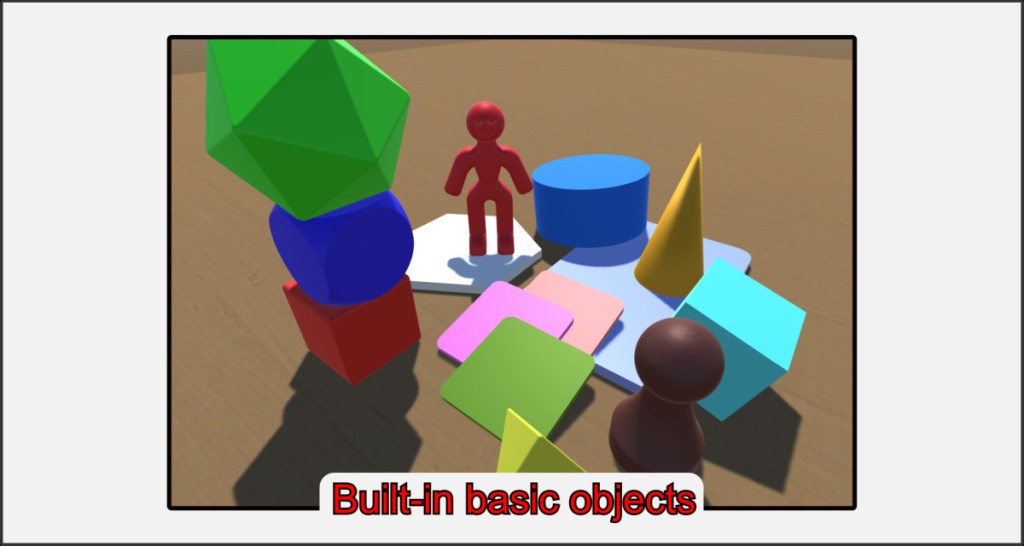
VBR comes with some basic game objects as standard. These include dice, meeples, card templates and basic geometric shapes.
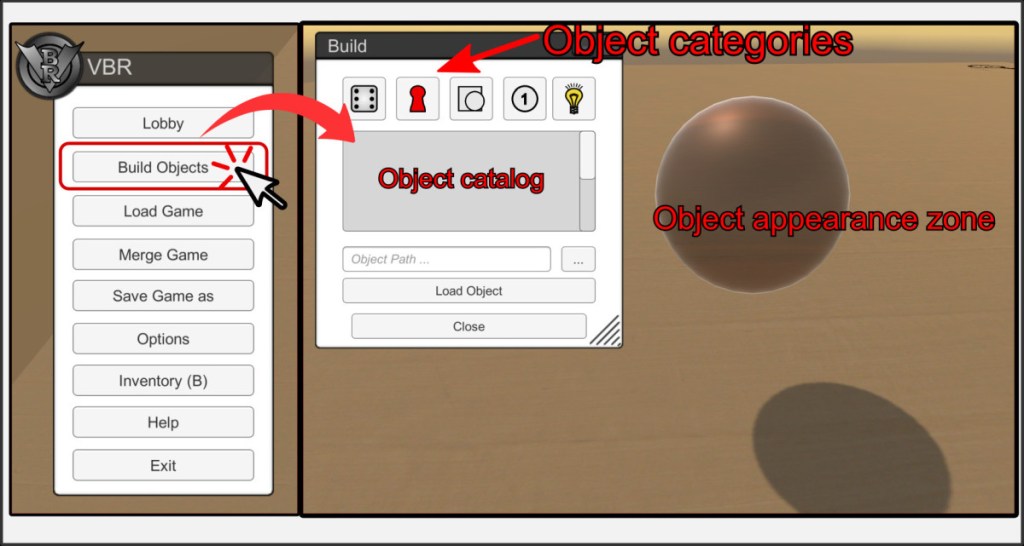
Open the Build Objects menu via the corresponding button in the main menu. The Build Menu offers various object categories, each of which contains a catalog in which the corresponding objects are listed. In addition, an object landing zone appears as a kind of transparent sphere in the center of the screen. This zone is linked to the player’s camera.
Note: The landing zone has been removed in newer versions of VBR. Instead, you can simply drag and drop objects from the catalog into the game world. However, the behavior where objects appear in the landing zone and then fall downward still exists.
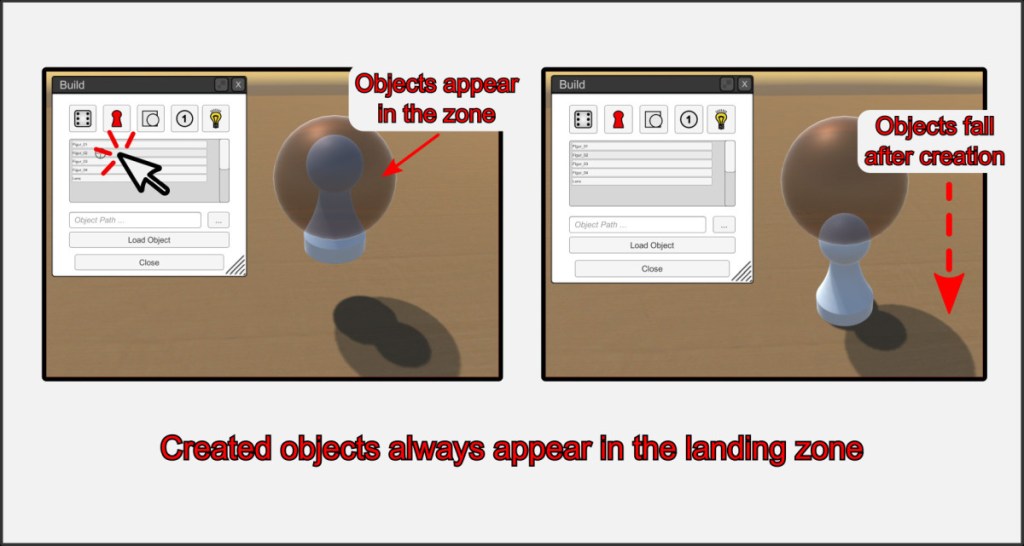
Click on the desired object in the catalog list. Objects always appear in the center of the landing zone and are then pulled down by gravity. To ensure safe placement, the camera should be close to the ground.
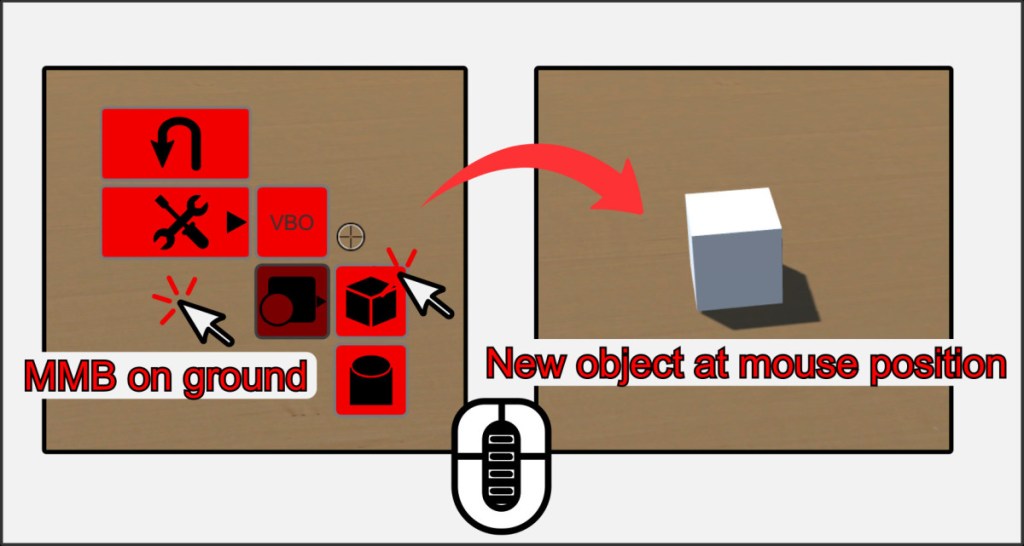
Another option for creating game objects in the room is the Creator menu of the middle mouse button. Press MMB on an empty area of the base plate. Attention! The menu only appears when the mouse cursor is not over a game object.
Select an object of your choice from the submenu. It will appear at the position where your mouse pointer was when you pressed MMB to open the menu.
Copy Objects
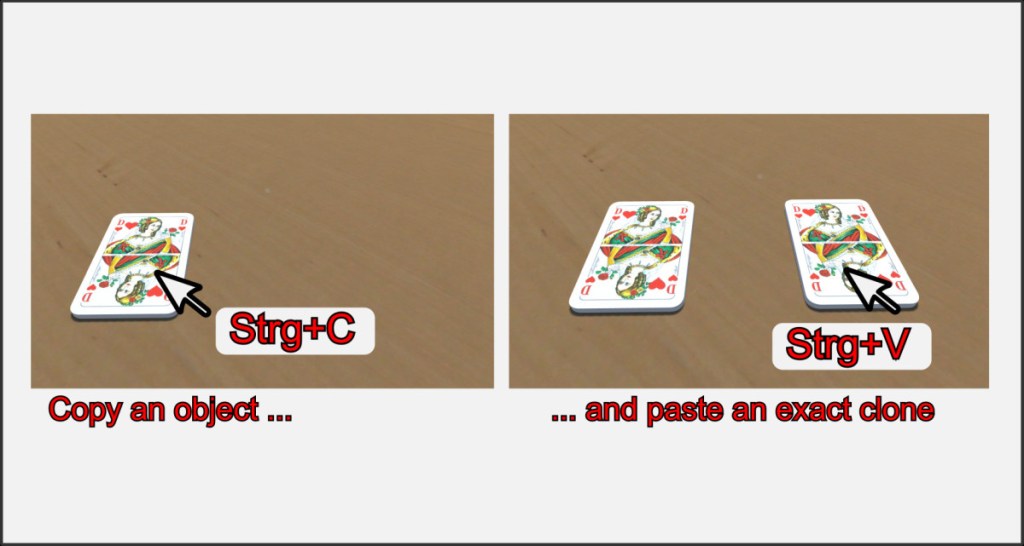
The copy function is a powerful tool for creating objects. Move the mouse pointer over an object and press Ctrl+C to copy its properties to the clipboard. Press Ctrl+V to create an exact clone of this object anywhere in the room as often as you like. All properties are copied 1:1. Attention! Contents of containers are not copied in this way.
Insider tip: Hover your mouse over an object and press the I key. This immediately creates a copy of the object and places it in the same spot. This creates a fun effect and lets you copy objects very efficiently.

