
Object States
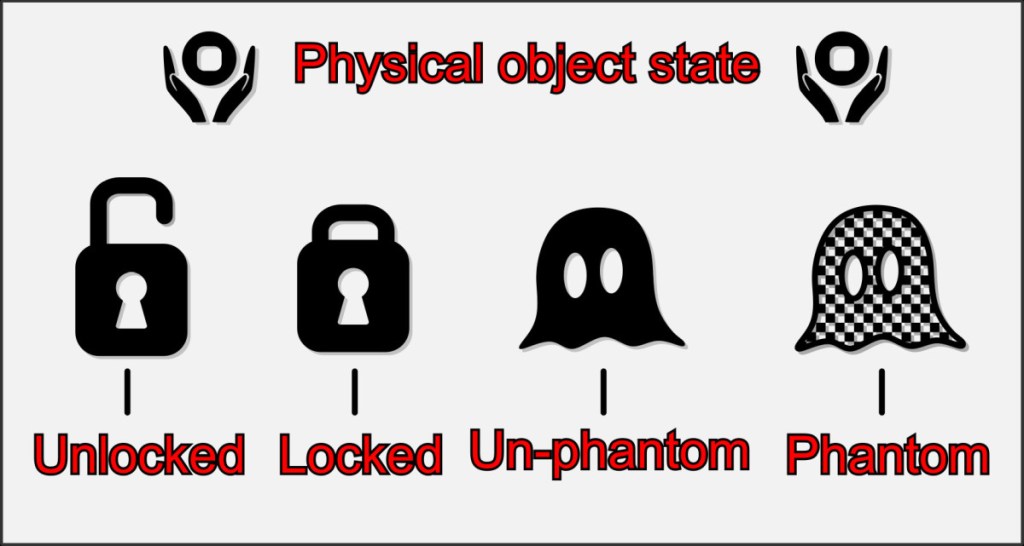
When using VBR, you will often want to change the physical properties of objects. This is useful and reduces frustration both when creating games and when playing them together. Be sure to learn these techniques in order to work elegantly with VBR.
In principle, two states are distinguished, which are independent of each other and whose combination has different effects on the object. These are the lock and the phantom state.
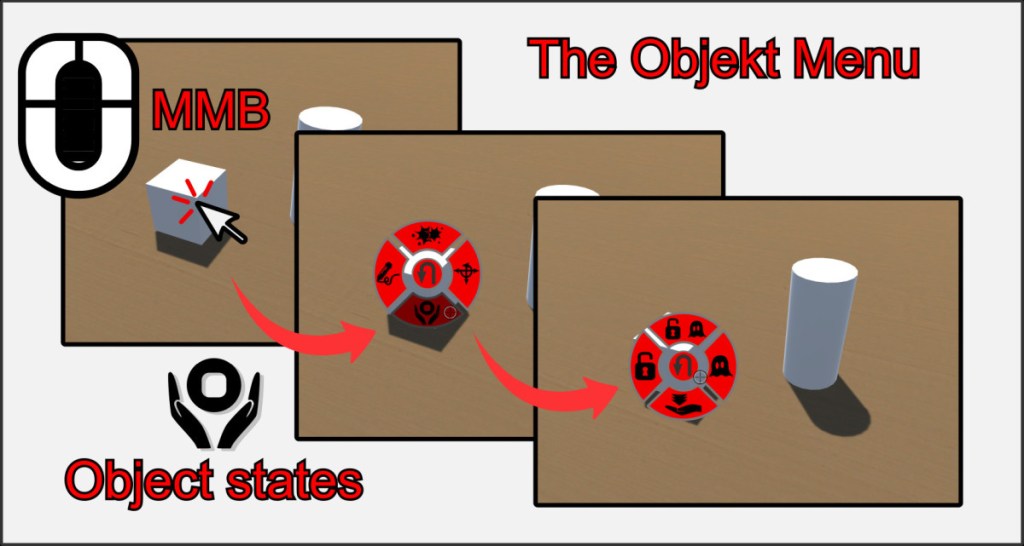
You can quickly view the state of an object using the object menu. Click on an object with the middle mouse button to open its ring menu. Select the bottom button for the states. The symbols on the buttons show which state the object is currently in. Pressing one of the buttons changes the state accordingly. The top button changes both states at the same time.
Tip: With the latest version of VBR, you can also use the Q key to display an object information frame that graphically shows the status of the object under the mouse pointer.
The Lock State
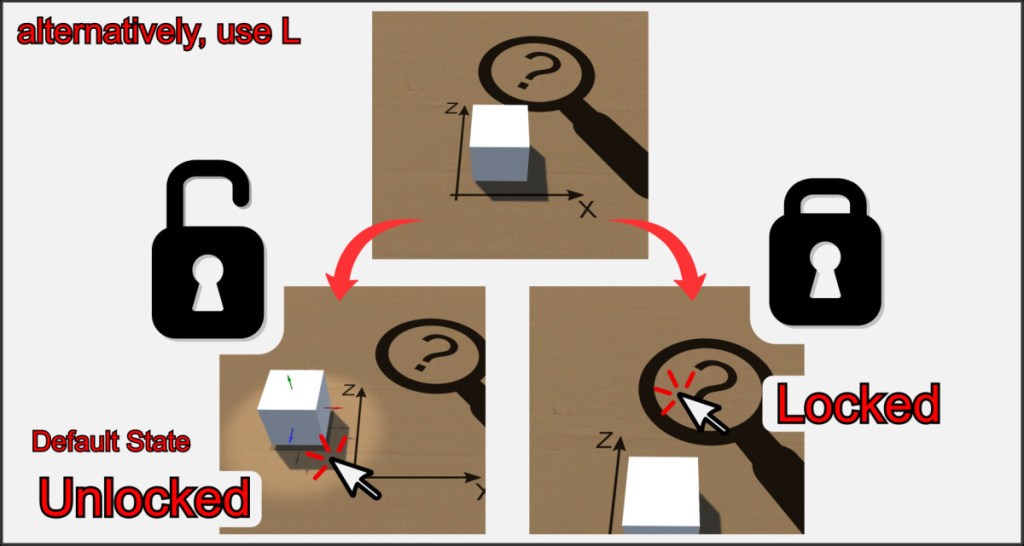
Unlock:
If an object is unlocked, you can move it freely in the room, throw it, and otherwise actively interact with it.
Lock:
A locked object can no longer be lifted, moved, rotated, or thrown by any user. It becomes a static object, which, however, retains all of its physical collision properties. A locked object can no longer fall.
You can quickly change the lock state of an object by pressing the L key while hovering over it.
The Phantom State
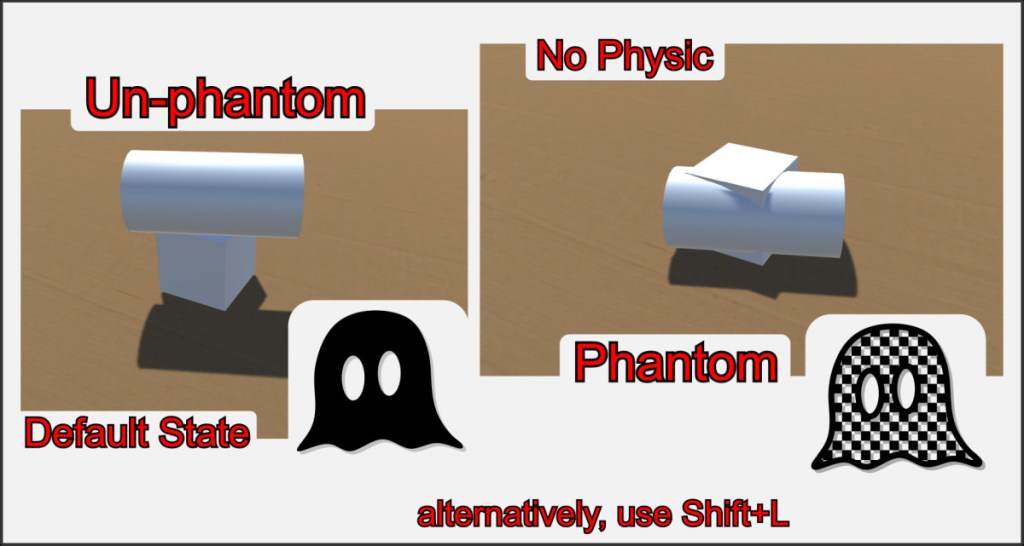
Un-Phantom:
Is the default state of an object. It has all physical properties.
Phantom:
The object no longer has any physical properties, but can be moved and rotated by users. It no longer collides with other objects. Do not try to throw a phantom object. (Shortcut key is Shift+L)
Hide Object
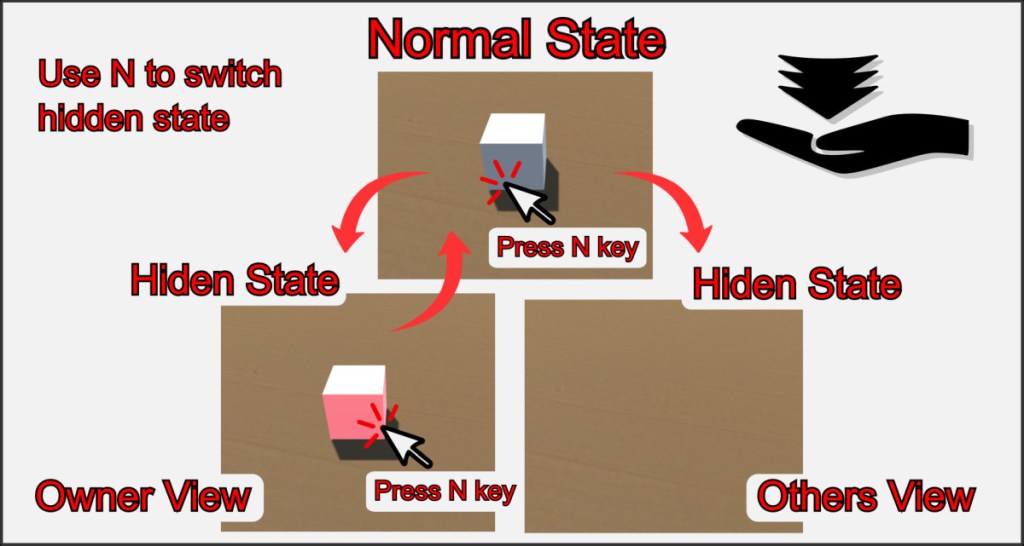
A final state is the hidden state. It is not independent of the other two states. A hidden object is always phantom and not locked. When a user hides an object, this is indicated by a red frame. The user becomes the owner of the object. Only the owner can now see the object on the playing field and interact with it. Press N to change the state. Warning! Do not use hide if the object is in your inventory.
This is a very specific option that allows you to simulate certain complex real-world situations. For example, if you want to hide the ships from the other players in a game of Battleship, which makes sense for the game mechanics.
If you want to pick up items, it’s better to use the inventory.

